
Blog / How-to

Blog

All How-to Local Ford Explorer Ford Bronco Ford F-150 Reliability 2026 Ford Ranger Ford Escape Ford Expedition Towing Ford Edge Ford Maverick Ford Raptor Best Years Brand vs. Brand Ford Bronco Sport Ford Tremor Conshohocken Ford Dealer Conshohocken Ford Service Ford Accessories Ford F-250 Ford F-59 Ford Mustang Interior
Black Dashboard and Steering Wheel of a Car

Ford Shifting Rough? How to Reset Your TCM (3 Easy Methods That Actually Work)

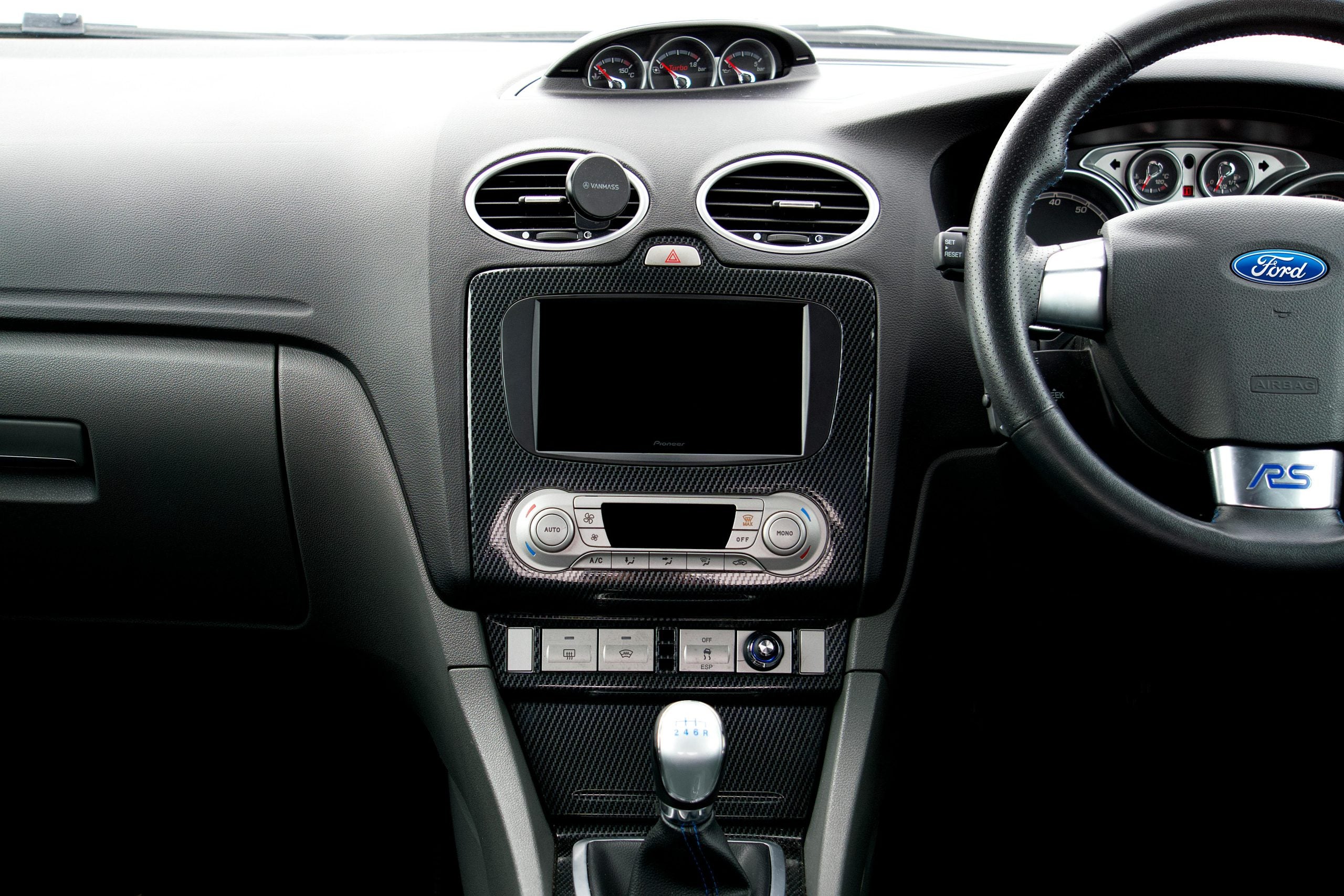
Is your Ford struggling with jerky acceleration or unusual shifting? These frustrating transmission problems might have a simple fix. Resetting the transmission control module (TCM) can solve these headaches without an expensive trip to the mechanic. In this article, we'll walk you through three proven ways to reset your Ford's TCM yourself, which can potentially save you hundreds of dollars in repair bills and get your car running smoothly again. more Schedule Service Understanding Ford Transmission Control Module Reset: When and Why You Need It The TCM in your Ford is like the brain of the transmission. It checks the speed, throttle position, and engine load to figure out the right shift points. It also keeps track of your driving habits and learns from them over time. But this data can get messed up or out of date, which can lead to sudden changes, delayed engagement, or gear changes that don't happen when they should. Ford F-150s from 2020 to 2025 have had a lot of powertrain recalls. For example, 2020 models had problems with the gearbox position indicator, while 2021 trucks had problems with the control module. The cost of repairs ranges from $1,000 to $3,000. Common signs are four- to five-second delays while going from first to second gear, followed by sudden jolts that can make the tires spin dangerously even when the car is just going slowly. When you push the gas pedal down hard, cars usually shift normally, which means there are electronic problems instead of mechanical ones. When you reset your TCM, it's like resetting your phone. It wipes out all the stored patterns and gives the system a fresh start. They work well for fixing electronic problems, but they won't address mechanical problems like worn clutches or valve bodies. Step-By-Step Guide: How To Reset Ford Transmission Control Module The basic pedal reset requires no tools. First, park on flat ground with the parking brake engaged, and turn the key so the dashboard lights come on without starting the engine. Press the gas pedal fully for 15-20 seconds, then while holding the pedal, turn the key off. Release the pedal and wait for two minutes before starting the engine. The battery disconnect method works for thorough resets. Disconnect the negative battery terminal, which is marked with a minus, using a wrench. Press the horn for 30 seconds to drain residual power. Leave the battery disconnected for a minimum of 15 minutes. This forces all computers, including the TCM, to factory reset. Reconnect the battery securely and start the vehicle, making sure to allow it to warm up before driving. For complete resets, OBD2 scanners are used. Professional scanners, such as the Innova 5610, offer more functions than budget DIY options but are more expensive. Connect the scanner to the OBD2 port (this should be under the dash near your left knee), then access the transmission menu and select Clear Adaptations or TCM Reset. Ford Model-Specific Reset Procedures for 2025 While the basic reset methods work on most Fords, certain models have their quirks. F-150 trucks usually work well with all three reset approaches. Their electrical systems handle battery disconnects without drama, and the roomy engine area makes reaching the battery a breeze. Many F-150 owners claim that the basic pedal reset fixes their shifting issues. Fusion, Explorer, Ranger, and EcoSport models also generally respond well to standard reset tricks without any special tweaks. Focus and Fiesta models, with the notorious PowerShift dual-clutch transmission, need special care. These transmissions have a history of serious TCM problems and typically need longer adaptation time after a reset. So don't panic if shifting doesn't feel right for the first 50-100 miles. If in doubt, open your owner's manual or ask a pro. Some newer Fords have extra security features that might affect how you reset the system. Troubleshooting Common Reset Issues Some Fords respond better to battery disconnects than pedal resets, while others need OBD2 scanners. If all three reset methods fail and problems persist, then you're dealing with mechanical issues, such as worn parts or low fluids. Error codes reveal what the issue is. Common TCM codes include P0700 (transmission control system malfunction), P0715 (input/turbine speed sensor circuit problems), and P0722 (no signal from the output speed sensor circuit). Codes returning immediately after clearing indicate that professional help is needed. TCM repair costs range from $300-$500, with complex cases reaching $1,500. Seek professional help if you've tried all reset methods unsuccessfully, hear grinding noises, spot fluid leaks, or smell burning odors. Multiple failed resets suggest a complete TCM failure. For complex issues, contact our experienced Ford technicians and schedule service with us at John Kennedy Ford Conshohocken. Post-Reset Adaptation and Learning Process Don't expect smooth shifts immediately after TCM resets, as your transmission needs relearning time. Initial symptoms, such as rough shifting or thumping sensations, are normal. Guided relearning with capable scanners takes 10-20 minutes plus a short road test. DIY resets need driving experience through light acceleration and braking cycles that allow natural gear progression. Avoid aggressive driving during the first 50-100 miles while establishing new baselines. Drive gently during adaptation. Use smooth throttle inputs, consistent speeds, and automatic shifting rather than manual mode. Most owners see improvements within a week. As this process allows for optimization based on current conditions, many drivers report better performance due to corrupted data being cleared. Prevention Tips: Maintaining Your Ford TCM Health Prevention beats repair when it comes to TCM troubles. Ford Edge models with 8F57 transmissions need fluid checks every 30,000 miles or two years. Frequent towers should change their vehicle's fluid every 60,000 miles. Using the wrong transmission fluid causes TCM confusion and shifting problems, so always check your Ford's fluid specs before changing it. Neglected maintenance, dirty or low transmission fluid, aggressive driving, and TCM issues will all cause your transmission to snowball over time. TCMs can also fail from excessive heat, bad sensors, or moisture exposure. Philadelphia's steamy summers and frigid winters put extra stress on your vehicle's electronics. Regular checkups can catch problems before you get stranded in Pennsylvania traffic. TCM care isn't rocket science; just make sure to address small transmission issues immediately. Stick to Ford-approved transmission fluid and change it on schedule, even if it looks clean, and go easy during extreme conditions, such as bumper-to-bumper traffic, long idle periods, or heavy towing. For model-specific advice, check out our how-to guides to keep your transmission running smoothly. Get Professional Ford Transmission Service When You Need It When DIY fixes aren't working, don't wait until your transmission dies completely. Professional service provides advanced diagnostic tools, genuine Ford parts, and experienced mechanics to work on your vehicle. Contact us at John Kennedy Ford Conshohocken for your next transmission service. Our technicians will fix your transmission troubles right the first time. We understand what makes your Ford tick and how to handle southeastern Pennsylvania driving conditions. Our team's Ford know-how can get you back on the road quickly and safely, whether you need a TCM reset or a serious transmission fix.
Closeup of a Vintage Black Car

Locked Your Keys in Your Ford F-150? Here’s What To Do Next

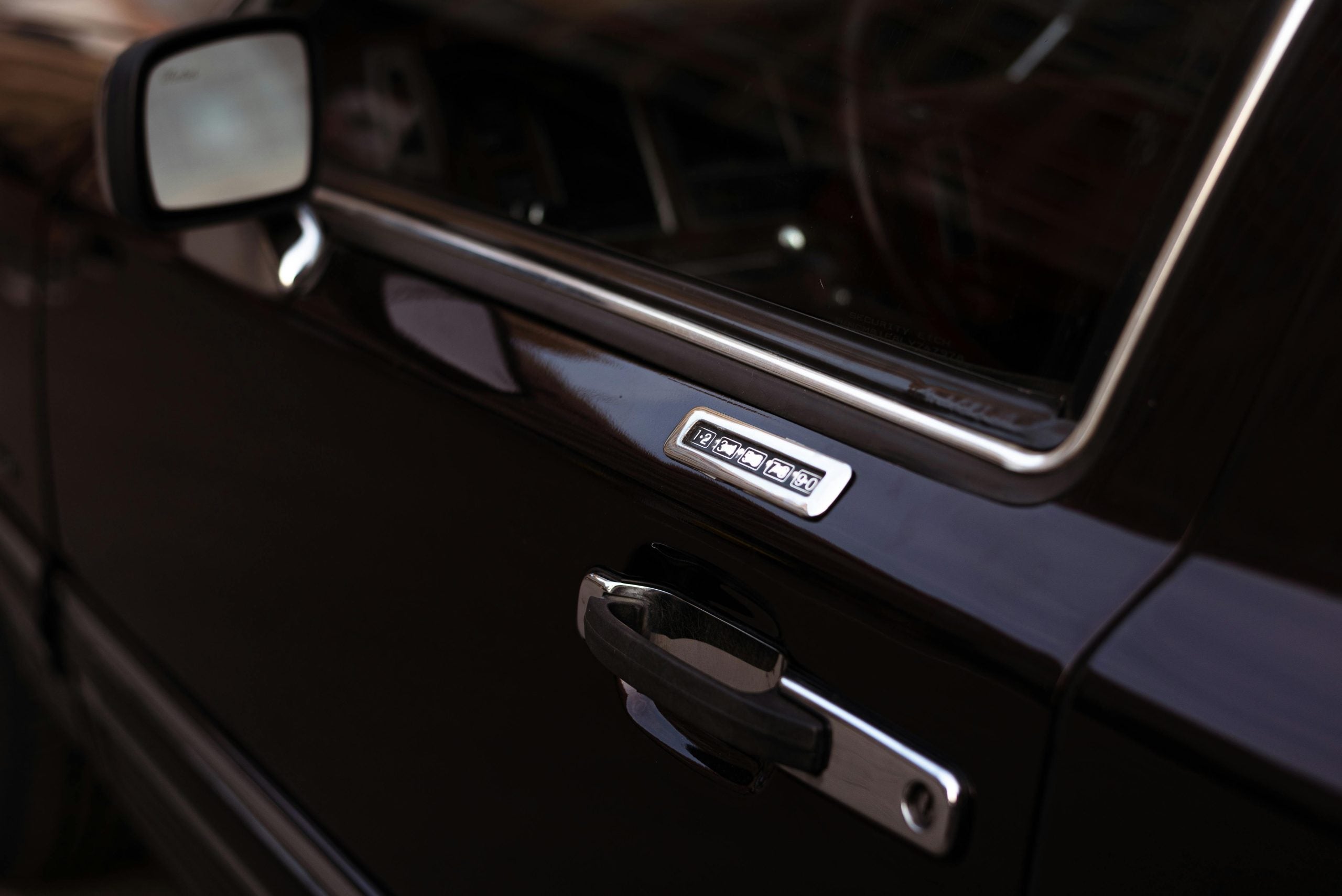
Has this happened to you? You've just slammed your F-150's door shut and spotted your keys sitting on the driver's seat. Don't panic. Ford has several ways to solve the problem. Our John Kennedy Ford Conshohocken team has compiled this guide to help you get back into your vehicle quickly. more Quick Assessment: Determine Your Ford F-150's Model Year and Features First, determine the year your truck was made. Check your owner's manual if it's not locked in the glove box, or locate your vehicle identification number (VIN). The VIN is a 17-character code that provides a wealth of information about your truck. Knowing the year will tell you what security features it has. Most F-150s made before 2025 come with keyless entry keypads on the driver's door. The VIN has three main sections: the first three characters indicate who built it, characters four through eight describe your vehicle, and characters nine through 17 provide specific details, such as the model year. Most importantly, the tenth character indicates the year it was made. You'll also want to check if your truck has FordPass Connect (usually found in 2017 and newer models) or a proximity key that works without being inserted. Look for any aftermarket alarm systems that could complicate the installation. Keep in mind that older and newer F-150s have completely different security setups, so knowing what you're working with saves time. Immediate Solutions: Built-In Ford Features To Try First Try Ford's built-in solutions first. If your truck is 2017 or newer, the FordPass app allows you to unlock doors remotely. Download it, create an account, and link your VIN. For keypad-equipped trucks, find the five buttons on your driver's door and enter your factory code. Every truck has a default five-digit code; some models also allow additional codes for family members. If you've forgotten your code, you can look it up on Ford's website. The 2025 F-150 doesn't have door keypads on any model. F-150s from 2015 or later are equipped with Intelligent Access. Hold your spare fob against the door handle. If that doesn't work, open the fob to find a physical key inside. Our John Kennedy Ford team can assist you if needed. We offer a mobile service that'll come to you. DIY Unlocking Techniques: Safe Methods for Different F-150 Generations When Ford's built-in solutions don't work, you may need to get creative — but be cautious. For older trucks (pre-2015 models), learning how to unlock a Ford F-150 with the coat hanger method may work, but you must be gentle to avoid damaging your weather stripping and window parts. Middle-aged F-150s (2009-2014) might yield to a Slim Jim or plastic wedge, but again, use caution. We don't recommend DIY solutions for F-150 models 2015 or newer. Their security systems are both complicated and easily damaged. Car forums may offer certain tricks or suggest particular tools, but without proper know-how, you risk damaging your truck. You may need to call our team at John Kennedy Ford Conshohocken. Professional Help Options: When To Call the Experts Sometimes, you need a professional, especially with newer trucks that are equipped with numerous security features. Most licensed locksmiths in the Montgomery County area work 24/7; this solution is handy if it's after business hours. Ford Protect's extended service plans include 24/7 roadside help for lockouts, flat tires, empty gas tanks, and dead batteries. AAA, car insurance, and Ford Roadside Assistance typically cover lockouts as well. When calling for help, have your location and truck details ready. Emergency Situations: Special Circumstances and Solutions Some lockouts require quick action. It's both a security and safety risk if you've locked your keys inside with the engine running, so don't leave a running truck. Call 911 immediately if your kids or pets are trapped inside, especially in hot weather. Prevention Strategies: Avoiding Future F-150 Lockouts Keep spare keys in secure locations, such as magnetic lockboxes, with trusted neighbors, or with a friend. Set up your FordPass app before a lockout happens, and keep your phone's battery charged. Try building habits such as patting your pocket for keys before locking up. Replace your key fob batteries regularly, and consider keeping a spare battery in your wallet for emergencies. If you live in the Conshohocken area, save our service department number along with local locksmith numbers in your phone now. Model-Specific Considerations for Different F-150 Generations Different F-150 generations need different approaches. The 2021 through 2025 models feature the latest FordPass technology and security systems that work best through their apps or with a professional intervention. The 2015 through 2020 trucks have Intelligent Access as well as keypads. The 2009 through 2014 models use traditional keys with manual unlock, while the 2004 through 2008 trucks have simpler setups. Pre-2004 trucks have basic locks and straightforward solutions. If you need parts or have questions about your F-150's security features, our John Kennedy Ford Conshohocken parts team is here to help. Get Professional Help for Your Ford F-150 in Conshohocken Today Getting locked out of your F-150 is frustrating, but you have options, from Ford's built-in solutions to professional help in Conshohocken. What works best depends on your truck's age and your specific situation. Contact our John Kennedy Ford Conshohocken team if you need immediate lockout assistance, want your spare keys programmed, or have questions about your F-150's security systems.

appshunter-io-rk5ht1r4GJI-unsplash

How to Use Remote Start on Your Ford F-150: A Complete Guide

Remote start technology on the Ford F-150 has truly transformed how you interact with your vehicle. With just a press of a button, you can fire up your engine from a distance, warming up or cooling down the cabin before you climb in. Throughout this guide, our team at John Kennedy Ford covers the ins and outs of using Ford's remote start, what your truck needs to make it work, and different ways to get your F-150 running from afar. You'll soon discover why this function is a must-have for your daily routine. more Understanding the Benefits of Remote Start for Your Ford F-150 The remote start system on your Ford is more than just fancy tech. Imagine a bitter January morning in Conshohocken, with temperatures well below freezing. Instead of bracing yourself for an icy shock when you open your truck door, you start it from your kitchen window. Your automatic climate control springs to life, warming things up to your preferred temperature so you slide into a toasty cabin instead of a chilly one. The advantages of remote start go beyond comfort. If you're a busy contractor or a professional who depends on their F-150 daily, there's no more sitting idle while your truck warms up or cools down. Starting your engine before driving can improve its longevity by reducing strain during cold starts, too. Don't stress about security — your F-150 stays firmly locked while it's running remotely. Remote Start Requirements for the Ford F-150 Before jumping into remote start, you'll need to verify your F-150's compatibility. While this function appears on many F-150 models, it's not standard across every truck. It's typically available on multiple trims, but be sure to double-check your specific model's capabilities. If you're using the key fob method, you'll need one with the remote start button, usually marked with a circular arrow symbol. If you're not sure if yours has it, check your owner's manual. If you prefer the FordPass app, your F-150 must have FordPass Connect installed. This lets you start your truck from virtually anywhere with internet access, which can come in handy. Step-By-Step Guide: How To Remote Start Your Ford F-150 Here are detailed instructions on how to start your truck remotely. Using the Key Fob Getting your F-150 running with the key fob is simple. First, check that your truck is locked. Press the lock button on your fob — a crucial step many folks skip. Next, locate the remote start button. Press this button twice within three seconds. Success means your truck's exterior lights flash twice. Watch for the LED light on your key fob. It'll light up or blink to confirm the remote start worked properly. If your truck stays silent, no worries. Make sure you're in range — generally within 300 feet — and that you've got the button sequence and timing right. If you still don't get a response from your truck, your fob battery might be weak, the hood might be propped open, the truck's battery might be low, or something else might be preventing the start sequence from completing. The FordPass app works anywhere you have internet access. To start your truck with the FordPass app, open the app, select your F-150, and tap start. Tips for Effective Use To maximize your F-150's remote starting capabilities, remember these practical tips. The key fob works best within 300 feet, but walls and other barriers can shrink that range. If it's not responding, try moving closer or to a different position. To maintain your fob's performance, keep it away from extreme temperatures, and swap the battery once a year or sooner if you notice decreased range. Your F-150 remembers your most recent climate control settings when you start the truck remotely, so just set your climate control how you like before exiting the truck. Never use remote start in garages or other enclosed spaces without proper air flow. If you need some extra time before leaving the house, your F-150 can be set to run for five to 15 minutes on remote start, and you can stretch that up to 35 minutes total by activating it again. Using the FordPass App Getting the FordPass app ready for your F-150 takes just a few minutes. First, grab the app from the App Store or Google Play. Once you've installed the app, open it and set up your account with basics such as your name, email, and password. The FordPass app works anywhere you have internet access. Now, connect your F-150. You'll need your vehicle identification number, or VIN, found on a plate in the driver's door jamb or on insurance documents. Input this into the app to link with your truck. Next, activate the FordPass Connect modem through your truck's touch screen. Find "FordPass Connect" in your vehicle settings and switch it on. To start your truck with the FordPass app, open the app, select your F-150, and tap start. Once configured, there's more to the app than remote start. You can lock/unlock doors, pinpoint your truck's location in a huge parking lot, check fuel levels, and even program regular start times. Picture your truck warming up automatically every workday at 7:30 — that's next-level convenience. Enhancing Your Ford F-150 Remote Start Experience Remote start transforms daily life with your F-150. Think about those icy Conshohocken winter mornings or sticky summer afternoons. With this function, you step into perfect comfort every time. No more shivering while waiting for heat or sweating through those first few minutes of driving. Plus, you've got options — use your key fob for quick starts nearby or the FordPass app when you're farther away. This technology is just one part of Ford's push to make F-150 ownership better. It fits into a broader vision that includes additions such as the Security Package. This optional service, for $7.99 monthly, adds layers of protection, including anti-theft alerts and stolen vehicle recovery assistance. Looking ahead, the 2025 F-150 will pack impressive tech, such as Ford BlueCruise, for hands-free highway driving on 97% of controlled-access highways in the United States, and Pro Power Onboard that delivers up to 9.6 kW of power you can use outside the truck. Check Out the New Ford F-150 at John Kennedy Ford Today If you're thinking about a new F-150 or if you need to schedule service, contact us at John Kennedy Ford of Conshohocken to set up a test-drive. Our friendly team can answer your questions and show you the remarkable features available on the FordPass app.

Steering Wheel of Ford Vehicle

How To Change the Battery in a Ford Key Fob

A key fob makes life with your Ford easy, but it's such a pain when that Ford key battery is low or dead. Don't stress because swapping out that battery is quick, costs next to nothing, and you can do it at home in a few minutes. At John Kennedy Ford Conshohocken, Pennsylvania, we've put together this guide to show you how to change your Ford key fob battery, including some handy tips for keeping it working well. more Schedule Service Message Us Call Now Understanding Your Ford Key Fob That little remote on your keychain is a pretty smart device. Your Ford fob lets you lock and unlock doors without fumbling for keys, pop the trunk while carrying groceries, and start your car from inside on freezing mornings. It's not only about saving time; remotes add that extra security layer that traditional keys can't match. Some Ford models have added some cool features to their key fobs. Imagine sitting at your desk when dark clouds roll in and you click a button and your car windows close. These nifty extras make daily driving less of a hassle and more enjoyable. How do you know when your Ford key battery needs replacement? There are a few warning signs to watch for. Normally, your fob should work from 30 to 50 feet away, but if you suddenly have to stand right next to your car for it to respond, you're mashing buttons repeatedly, or there's a lag between clicking and action, it's likely time for a new battery. Preparing To Change Your Battery It's necessary to get a few things ready before we explain how to open your Ford key fob. These are the items you'll need: Small flathead screwdriver New battery — CR2032 or CR2025 — check your car's manual for the battery type Clean lint-free cloth Tweezers Small 1.4 mm or 2.4 mm precision screwdrivers Before cracking open your fob, wipe it down. Handle your new battery carefully, touching the edges only, as your fingerprints contain oils that can mess with the battery's contact points. These simple steps stop dirt from sneaking inside, where it could cause problems. Please don't chuck the old battery in the trash; dispose of it following the regulations in your area. Step-By-Step Guide To Changing the Battery Press the button to pop out the metal key. You'll be able to see a small gap or seam in the plastic case. Slip your flathead screwdriver into the gap and twist gently until the two halves separate. Be patient because rushing this step risks you cracking the plastic or damaging something inside. When you see the battery, make sure to take notice of the way it's facing. Either take a mental snapshot or grab a pic with your phone. Carefully pry out the old battery — the tweezers can help. Place your new battery in the same position. Most CR2032 and CR2025 batteries have a "+" marked on one side, which typically faces upward in Ford fobs. Make sure the battery is completely flat and doesn't wiggle around. Align the halves of the fob and press them together gently until you hear a click. Slide the key blade back into position, press each button on your fob to check they're all responding, and walk a short distance away and test again. If everything is working, congratulations, you successfully changed your Ford key fob battery. Troubleshooting Common Issues If it's not working, here are some common issues that can cause problems. First, check that your battery is correctly inserted, not upside down. If that's not it, inspect your fob closely for hairline cracks or water damage. A hard drop or accidental washing machine trip causes internal damage no battery swap can fix. If your battery orientation is correct and there's no visible damage, try moving to a different location because nearby electronics can jam your fob's signal. Your neighbor's garage door opener, security systems, or those cool LED lights might be the culprits. If there's still nothing, a reset might help. The exact button combo varies by Ford model and can be found in your owner's manual. It typically involves holding down specific buttons for several seconds. Maintenance Tips for Your Ford Key Fob A little TLC goes a long way. Rule number one is to keep it dry because remotes don't play well with water — rain, pools, and washing machines are bad news. Watch temperature extremes, as fobs left in a hot car or forgotten in the icy cold can cause their battery to drain faster and damage electronic components. When not in use, store your fob away from other keys and metal objects. As for cleaning, less is more. A soft, slightly damp cloth works wonders on dirty exteriors. Skip harsh cleaners that might seep inside or damage the plastic casing. If the buttons feel sticky, a gentle pass with a wooden toothpick around the button edges often clears gunk. Don't fidget with your fob or click buttons out of habit, as each press drains the battery a little more. Battery life can vary between drivers, with the average ranging between two to three years. Some folks manage a decade from a single battery, while others burn through one annually. Battery life depends on usage patterns and fob features because a keyless entry system battery works harder since it's constantly communicating with your car. Mark your calendar for a yearly battery check — it beats getting stranded when your fob suddenly quits. Keeping Your Ford Key Fob Running Smoothly Changing your key fob battery is a simple fix that can save the hassle of dealership visits or service fees. Most battery swaps go smoothly, but you might hit a snag that means you need professional attention. For those times, our technicians at our service center have your back. We know every inch of your Ford vehicle and can sort out anything from tricky key programming to major repairs. Schedule service online, drop by, or contact us when you need a helping hand. We're ready to get you back on the road.

appshunter-io-rk5ht1r4GJI-unsplash

Connecting Your Car to FordPass: A Step-by-Step Guide

FordPass is an excellent app designed to improve your driving experience by offering remote access to key vehicle features. This step-by-step guide will walk you through connecting your car to FordPass. Make sure you have your smartphone and a strong internet connection. For expert guidance, visit our John Kennedy Ford Conshohocken dealership. more Contact Us Call Now What Is FordPass and Why Use It? FordPass is a smartphone app that connects you to your Ford vehicle. It helps you control various features from anywhere and provides access to essential vehicle information. With FordPass, you can: Start or stop your engine from anywhere. Lock and unlock doors from your phone. Monitor fuel levels, tire pressure, and oil life. Locate your parked car using GPS. Stay informed about maintenance needs. Schedule service appointments easily. Find nearby dealers for emergency service. Control your Wi-Fi remotely. Request 24/7 roadside assistance. Key Features of FordPass Here are some standout features that make FordPass so useful: Remote start: Pre-condition your car's interior by starting it remotely. You can heat or cool your car before you get in it — a great feature if you live in a very hot or cold area. Fuel checks: See how many miles you can drive before an empty tank. Scheduled start: Set your vehicle to start up at a certain time. Live traffic updates: Get real-time traffic data to plan the most efficient route. Vehicle health alerts: Stay informed about your car's maintenance needs, such as tire or oil health. Wi-Fi hotspot: Enable internet access for passengers (available on select models). Ensuring Compatibility: Is Your Vehicle Ready for FordPass? Before connecting, make sure your vehicle supports FordPass Connect. Most Ford models from 2017 onward come with an onboard modem that helps you connect this way. To ensure your vehicle is compatible, look for the FordPass Connect icon on your SYNC touch screen. You can also visit Ford's support website, check your owner's manual, or contact our dealership for help. Necessary Requirements Before Connecting Before you begin, make sure you have the following when connecting FordPass to your car: A smartphone (this can be either iOS or Android) A stable internet connection Your vehicle identification number (VIN), which you can find on the driver's door frame or windshield An active FordPass account Step-by-Step Guide to Connecting Your Vehicle to FordPass Setting up your FordPass is simple. You can complete it from start to finish in just a few minutes. How to Download and Install the FordPass App Open the App Store  for iOS or Google Play  for Android. Search for FordPass and download and install the app. Open the app and accept the terms and conditions. Creating and Verifying Your FordPass Account Open the FordPass app. If you don't already have a Ford Owner Account, create one by tapping "Sign Up." Enter basic information such as your name, email address, and a secure password. Check your email or texts for a verification link to confirm your account. Preparing Your Vehicle for Connection Park your vehicle in a safe space, such as your driveway or garage, to begin setup. Turn your ignition on during the process. If prompted by the SYNC system, disable your Apple CarPlay or Android Auto temporarily. Step-by-Step Vehicle Connection Process Open the FordPass app and log in to your account. It will prompt you to add a vehicle to your garage. Tap "Add Vehicle" on the home screen. Type your VIN in manually or scan it using your phone's camera. If you're scanning the VIN, use your phone to photograph the barcode. It will say "Searching" and then "Vehicle Found." Once you have verified the VIN, tap "Activate Vehicle." This may take up to 90 seconds to complete. Activating FordPass Connect Get into your car to complete the next step. Start the vehicle and look for a pop-up message on the SYNC screen to finish activating your account. It will prompt you to "Enable FordPass Connected Services." Tap "Yes" or "Allow" within 10 startups to turn on your connectivity features. If you receive a "Congratulations" screen, press "OK." Wait for confirmation that activation was successful. Sometimes, you need to close the app on your phone and reopen it. Understanding FordPass Connect: Troubleshooting If you have connection issues, try these solutions: Check your internet connection: Ensure your phone has stable Wi-Fi or cellular data. Restart your vehicle and phone: A simple reboot can sometimes fix connection problems. Update the FordPass app: Visit your app store and install the latest version. Verify VIN entry: Make sure you have entered the correct VIN in the app. Reinstall the app: Delete and reinstall FordPass to refresh settings. For additional troubleshooting or FordPass problems, visit Ford's support website. Activating FordPass Connect in Conshohocken, Pennsylvania By following these steps, you can take full advantage of FordPass, making your ownership experience even more convenient and connected. If you still have trouble connecting FordPass to your vehicle, contact our John Kennedy Ford Conshohocken dealership for expert help. We can set up your account and show you how to use it. Give us a call or stop by in person.

Steering Wheel and Controls of a Ford Mustang Sports Car

How To Update Ford SYNC: Easy Step-By-Step Guide

Updating your car's software can seem like a big task, but it doesn't have to be. Our experts at John Kennedy Ford Conshohocken have put together this guide to help you learn how to update Ford SYNC quickly and easily. By following these instructions, you'll have the latest features in no time, boosting your car's performance and your driving experience. Let's make sure you're driving with the best tech Ford has to offer. more Schedule Service Understanding Ford SYNC and Its Importance Ford's SYNC technology keeps you connected while driving and allows you to use voice commands to do the following tasks: Hands-free calling: Use your voice to make hands-free calls with your Ford SYNC system. Remote access: Start, stop, lock, and unlock your car wherever you go using FordPass Connect. Navigation: Link to the local traffic information and latest maps. Wi-Fi connectivity: Stay connected to Wi-Fi regardless of where the road takes you with FordPass Connect. The SYNC system works with your Bluetooth-enabled smartphone. Many of these features are standard these days, and the ability to use them hands-free makes it even more appealing. Ease of use makes your driving experience that much better, and that's precisely what Ford strives for. Keeping your SYNC updated means you get the latest features and bug fixes, which can improve your car's performance and your safety. When you update your Ford SYNC software, you ensure your system has the latest features. These updates often include new apps, better connectivity options, and improvements in voice recognition. Identifying Your Vehicle's SYNC Version Before you learn how to update Ford SYNC software, check which version you have, either through your vehicle's manual or the Ford SYNC update page online. You can also use your car's touch screen by going to the "Settings" menu. There, you'll see "General" or "About SYNC," which will show the current version. Ford SYNC comes in different versions, each with unique features: SYNC Gen 1: This is the earliest version, offering basic voice commands and phone connectivity. SYNC Gen 2: Also known as MyFord Touch, this version added a touch-screen interface. SYNC 3: This version improved the graphics and processing speed. SYNC 4: The latest SYNC 4 offers over-the-air (OTA) updates, eliminating the need for a USB. Knowing your version helps you choose the right update method. Step-By-Step Guide to Updating Ford SYNC Now that you know which version of SYNC you have, let's look at how to update it. Preparing for the Update: What You Need Before you start, gather the necessary tools. You'll need a USB drive with at least 8 GB of space for SYNC updates. Make sure your USB is empty and formatted to FAT32 (for SYNC versions before SYNC 3) or exFAT (for SYNC 3 and later). You'll also need your vehicle identification number (VIN), which you can find on your car's dashboard or inside the driver's door. This number ensures you download the correct update for your specific vehicle. Update Methods by SYNC Version For SYNC Gen 1 and Gen 2, you'll need to update using a USB drive. First, visit the Ford SYNC download page and enter your VIN to find the right update. Download the update file to your USB, then plug it into your car's USB port. Follow the on-screen instructions to complete the update. It usually takes about 30 minutes, so make sure your vehicle is in a safe spot with the engine running. SYNC 3 and SYNC 4 offer an easier way to update. These versions support OTA updates, meaning your car can download updates directly through a Wi-Fi connection. To do this, go to "Settings" in your SYNC menu, select "Wi-Fi," and connect to a network. Then, check for updates under "General" or "About SYNC." Your car will download and install any available updates automatically. This method keeps your SYNC up to date without needing a USB drive. Troubleshooting Common Update Issues Sometimes, updates don't go as planned. If you encounter problems, don't worry. First, make sure your USB is formatted correctly and has enough space. If the update fails, try redownloading the file from the Ford SYNC update page and start over. Ensure your car's battery is charged and your engine runs during the update to avoid interruptions. For OTA updates, ensure your Wi-Fi connection is strong. If your car fails to connect, try moving closer to your router or using a different network. If you still have issues, contact Ford customer support or visit our dealership for help. We're here to ensure your Ford SYNC update goes smoothly. Verifying Successful SYNC Update Once the update finishes, verify it was successful. Go to the "Settings" menu in your SYNC system and check the "About SYNC" section. Compare your SYNC version number with the latest one listed on the Ford SYNC update page. If they match, congratulations. Your SYNC is up to date. Enjoy the new features and improved performance your system now offers. Stay Updated and Connected Updating your Ford SYNC system ensures you have the latest features and a better driving experience. If you need assistance or prefer a professional touch, our team at John Kennedy Ford Conshohocken is ready to help. Contact us today to schedule an appointment or visit our service center in Conshohocken, Pennsylvania. We're committed to keeping your Ford in top condition and making your driving experience the best it can be.

Closeup of a Vintage Black Car

How To Reset a Ford Door Code Without the Factory Code

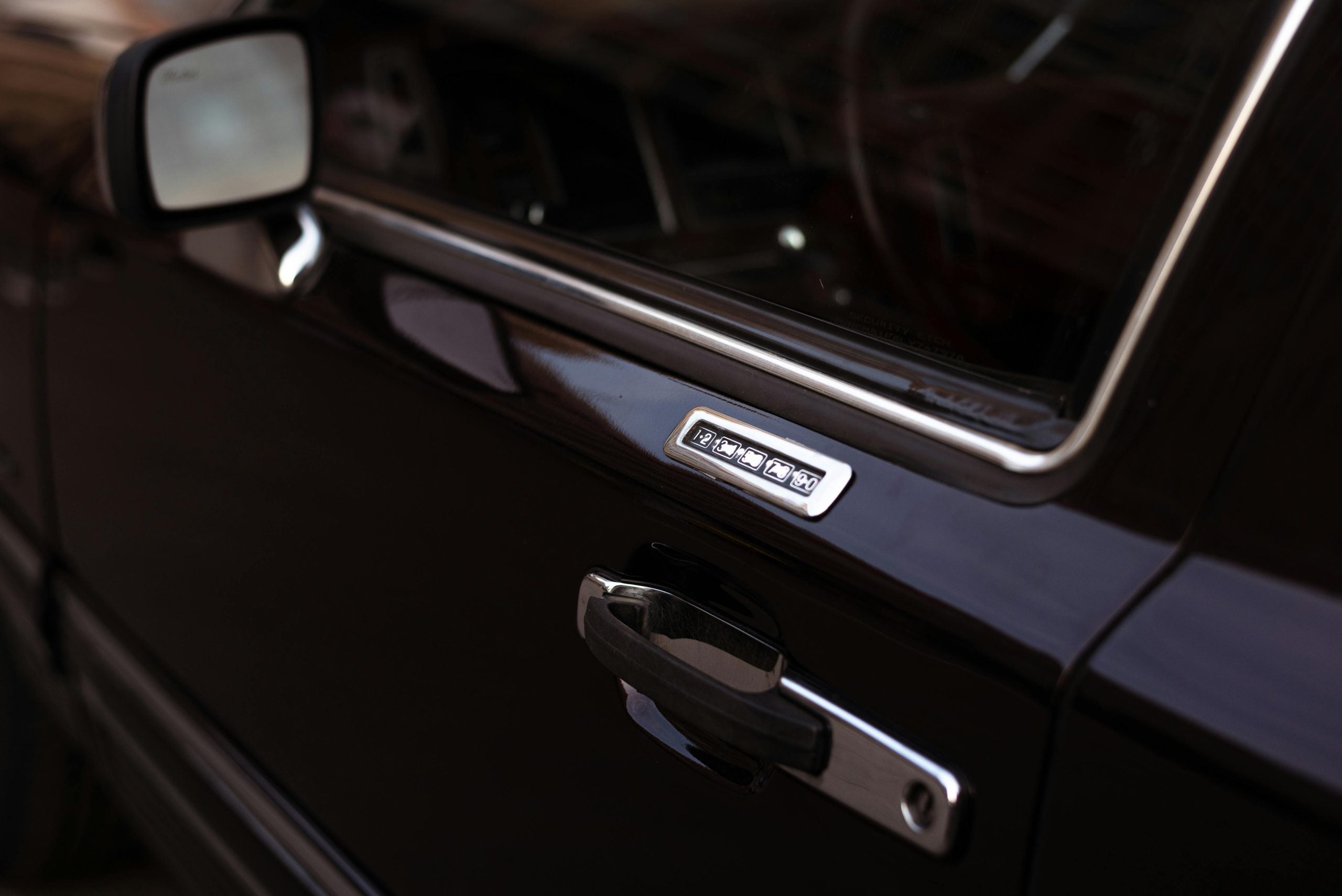
If you're a Ford owner, Ford's keyless entry system provides you with an added layer of convenience and security. Whether you're returning to your car after a long day or need to give someone else temporary access to your vehicle, the keyless entry system allows you to lock and unlock your car without a traditional key. But what happens if you forget or lose your door code? There's no need to panic — with a few simple steps, you can reprogram your Ford's door code and regain access. Read on and let our expert team at John Kennedy Ford of Conshohocken take you through the process. more Schedule Service What Is the Ford Keyless Entry System? Ford's keyless entry system is a convenient feature that allows you to lock and unlock your car doors without using a traditional key. Instead, the system uses a preset numerical code entered via the vehicle's keypad, which is typically located on the driver's side door, to unlock the car. The system is programmed with a factory default five-digit code, which you can customize. Some models even allow you to set additional codes, providing access for other authorized people. The extra convenience the system offers is great when you have your hands full or can't easily find your car keys. How Does the Keyless Entry Code Work? Your keyless entry code is stored in the car's body control module (BCM), which is essentially the brain of the system. This module controls the various electronic components in the vehicle, including the keyless entry keypad. When you enter the correct code, the BCM sends a signal to the vehicle's locking mechanism to unlock the door. The door code works as a secondary security measure, allowing you to access the vehicle without needing a physical key or remote fob. The option to add more codes also lets you share your vehicle with others using unique codes for easy management. Benefits of Having a Keyless Entry System The keyless entry system offers a range of benefits: Convenience: You can unlock and lock your doors with just the touch of a button without needing to search for your keys. Security: If you lose your keys or fob, you can still gain access to your car. With the ability to manage additional personal codes, you can easily restrict other users’ access. Customization: You can set and change codes whenever needed. This provides flexibility in managing who can access your vehicle. No need for a fob: Unlike remote key fobs, which can run out of battery or be misplaced, the keypad system doesn't require you to carry anything extra. Step-By-Step Guide to Resetting Your Ford Door Code Without the Factory Code If you've lost the factory code or simply want to reset your code for security reasons, for example, after lending someone your car — or even if there's been a problem with the keypad that requires a reset to restore full functionality — don't worry. You'll have to access your vehicle's BCM, but with these basic steps, you'll be back cruising the streets of Conshohocken in no time. Tools and Requirements Before You Begin Before starting the process, you'll need a computer with FORScan downloaded, a Ford-approved on-board diagnostics (OBD) scanner with a USB connector, and access to your Ford's BCM, which is typically located under the dashboard near the driver's side or behind the glove compartment. Make sure you have plenty of time and work carefully. Locating the BCM To begin the reset process, you'll first need to locate the BCM. In most Ford models, this can be found under the dashboard near the driver's side footwell or behind the glove compartment. In some cases, it may be located behind the fuse box or other interior panels. Obtaining the Factory Code Plug the OBD scanner into the vehicle's OBD-II port (usually located under the dashboard) and connect it to a USB port on your computer. Turn the car's ignition on, open the FORScan program, and follow the prompts to find the factory-set keyless entry code, which can never be erased. Reprogramming the Door Code After you have the factory code, enter it on your car's keypad to make sure it works. You can set a new code of your choice that you can easily remember. To set the new code: Enter the factory code. Press and hold the 1/2 button on the keypad for two seconds. Within five seconds, enter your new five-digit code. Press and hold the 1/2 button again. The doors should lock and unlock to show the new code has been accepted. You should still be able to use the factory code as well as your new code, so keep both codes in a safe place in case you have any further issues. When To Seek Professional Help If you're not comfortable working with your vehicle's electronic systems or don't have access to the necessary diagnostic tools, it's always a good idea to seek professional help. At our service department at John Kennedy Ford of Conshohocken, our certified technicians can reset the door code for you without any risk to your vehicle. Do you have questions about resetting your door code? Contact us now for expert help or schedule a service appointment.

Contact Us

Fill out this form below and we'll contact you shortly
*Required Fields