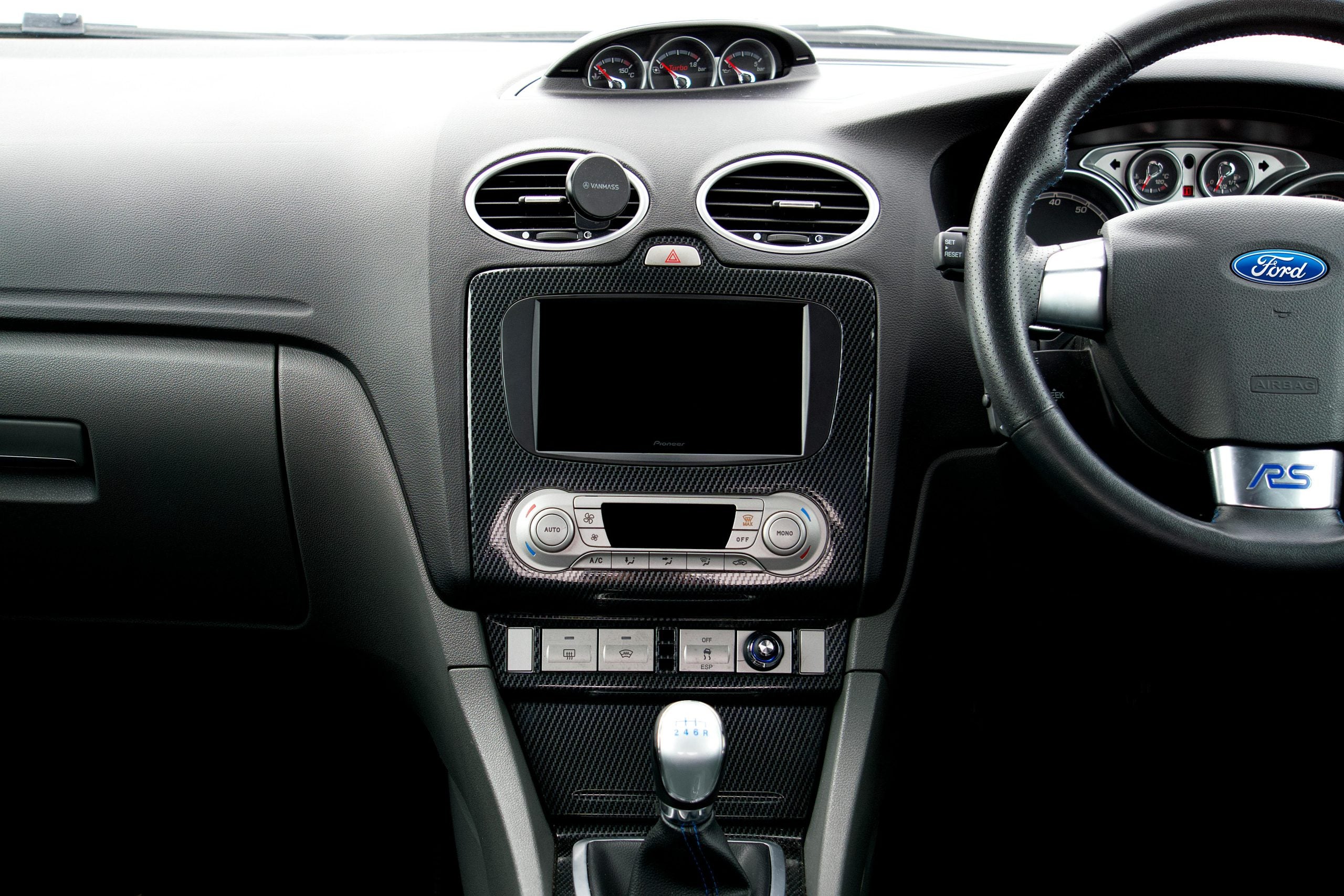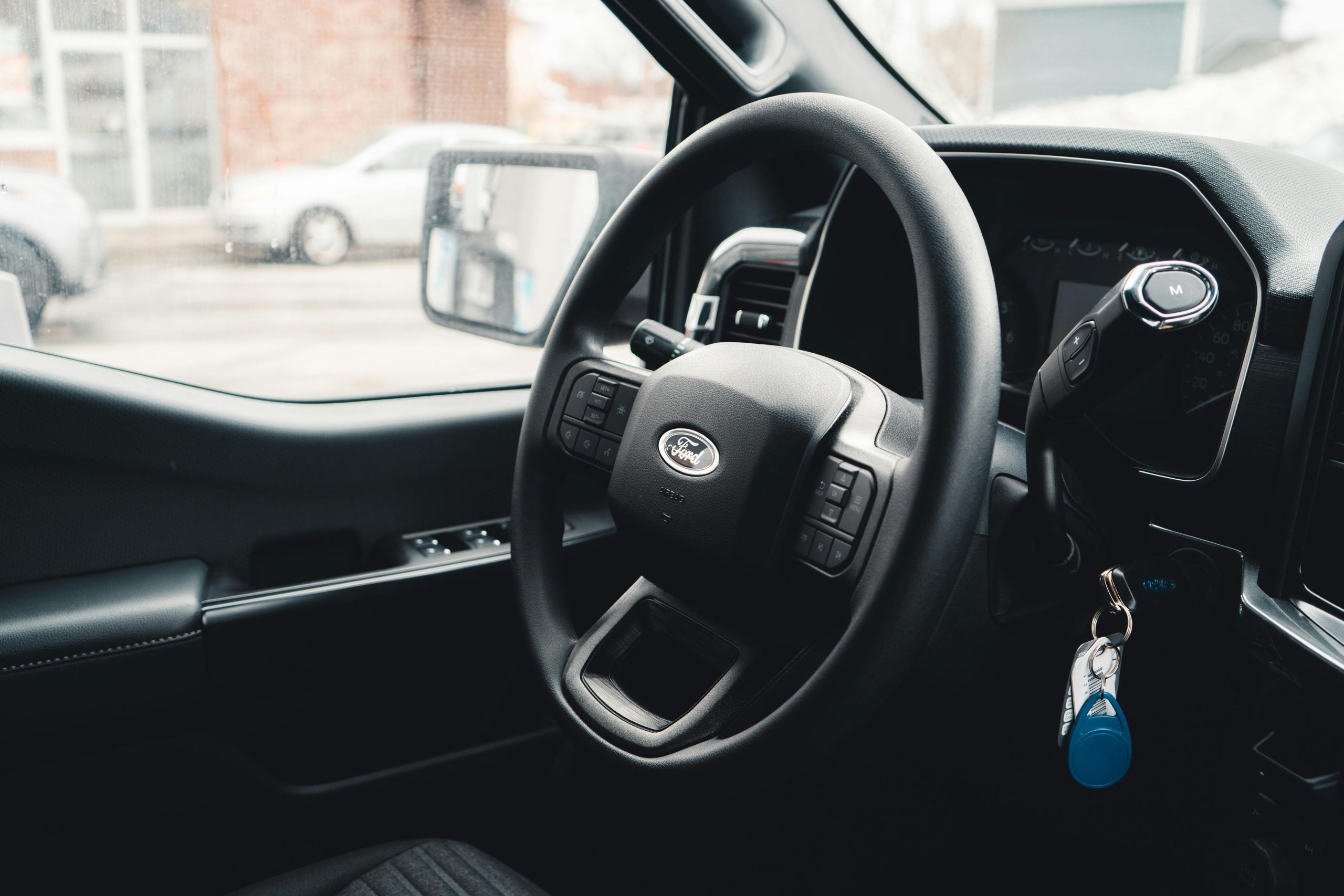

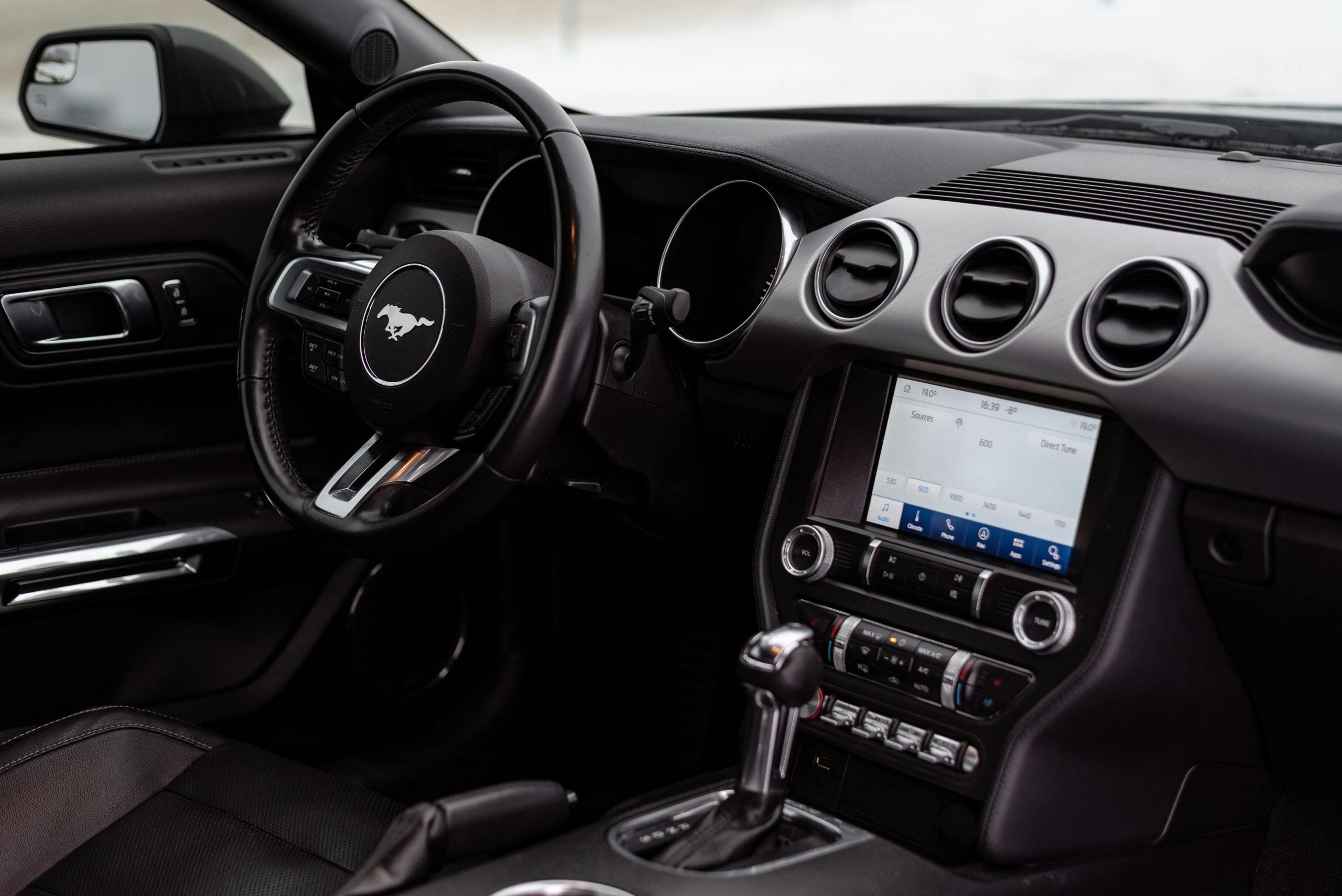
Updating your car's software can seem like a big task, but it doesn't have to be. Our experts at John Kennedy Ford Conshohocken have put together this guide to help you learn how to update Ford SYNC quickly and easily. By following these instructions, you'll have the latest features in no time, boosting your car's performance and your driving experience. Let's make sure you're driving with the best tech Ford has to offer.
Understanding Ford SYNC and Its Importance
Ford's SYNC technology keeps you connected while driving and allows you to use voice commands to do the following tasks:
- Hands-free calling: Use your voice to make hands-free calls with your Ford SYNC system.
- Remote access: Start, stop, lock, and unlock your car wherever you go using FordPass Connect.
- Navigation: Link to the local traffic information and latest maps.
- Wi-Fi connectivity: Stay connected to Wi-Fi regardless of where the road takes you with FordPass Connect.
The SYNC system works with your Bluetooth-enabled smartphone. Many of these features are standard these days, and the ability to use them hands-free makes it even more appealing. Ease of use makes your driving experience that much better, and that's precisely what Ford strives for.
Keeping your SYNC updated means you get the latest features and bug fixes, which can improve your car's performance and your safety. When you update your Ford SYNC software, you ensure your system has the latest features. These updates often include new apps, better connectivity options, and improvements in voice recognition.
Identifying Your Vehicle's SYNC Version
Before you learn how to update Ford SYNC software, check which version you have, either through your vehicle's manual or the Ford SYNC update page online. You can also use your car's touch screen by going to the "Settings" menu. There, you'll see "General" or "About SYNC," which will show the current version.
Ford SYNC comes in different versions, each with unique features:
- SYNC Gen 1: This is the earliest version, offering basic voice commands and phone connectivity.
- SYNC Gen 2: Also known as MyFord Touch, this version added a touch-screen interface.
- SYNC 3: This version improved the graphics and processing speed.
- SYNC 4: The latest SYNC 4 offers over-the-air (OTA) updates, eliminating the need for a USB.
Knowing your version helps you choose the right update method.
Step-By-Step Guide to Updating Ford SYNC
Now that you know which version of SYNC you have, let's look at how to update it.
Preparing for the Update: What You Need
Before you start, gather the necessary tools. You'll need a USB drive with at least 8 GB of space for SYNC updates. Make sure your USB is empty and formatted to FAT32 (for SYNC versions before SYNC 3) or exFAT (for SYNC 3 and later). You'll also need your vehicle identification number (VIN), which you can find on your car's dashboard or inside the driver's door. This number ensures you download the correct update for your specific vehicle.
Update Methods by SYNC Version
For SYNC Gen 1 and Gen 2, you'll need to update using a USB drive. First, visit the Ford SYNC download page and enter your VIN to find the right update. Download the update file to your USB, then plug it into your car's USB port. Follow the on-screen instructions to complete the update. It usually takes about 30 minutes, so make sure your vehicle is in a safe spot with the engine running.
SYNC 3 and SYNC 4 offer an easier way to update. These versions support OTA updates, meaning your car can download updates directly through a Wi-Fi connection. To do this, go to "Settings" in your SYNC menu, select "Wi-Fi," and connect to a network. Then, check for updates under "General" or "About SYNC." Your car will download and install any available updates automatically. This method keeps your SYNC up to date without needing a USB drive.
Troubleshooting Common Update Issues
Sometimes, updates don't go as planned. If you encounter problems, don't worry. First, make sure your USB is formatted correctly and has enough space. If the update fails, try redownloading the file from the Ford SYNC update page and start over. Ensure your car's battery is charged and your engine runs during the update to avoid interruptions.
For OTA updates, ensure your Wi-Fi connection is strong. If your car fails to connect, try moving closer to your router or using a different network. If you still have issues, contact Ford customer support or visit our dealership for help. We're here to ensure your Ford SYNC update goes smoothly.
Verifying Successful SYNC Update
Once the update finishes, verify it was successful. Go to the "Settings" menu in your SYNC system and check the "About SYNC" section. Compare your SYNC version number with the latest one listed on the Ford SYNC update page. If they match, congratulations. Your SYNC is up to date. Enjoy the new features and improved performance your system now offers.
Stay Updated and Connected
Updating your Ford SYNC system ensures you have the latest features and a better driving experience. If you need assistance or prefer a professional touch, our team at John Kennedy Ford Conshohocken is ready to help. Contact us today to schedule an appointment or visit our service center in Conshohocken, Pennsylvania. We're committed to keeping your Ford in top condition and making your driving experience the best it can be.